TRLE Levels: manage Tomb Raider custom levels in Playnite
Free Playnite extension for TRLE custom levels: scan folders, trcustoms.org metadata, one-click downloads and savegames synced between PCs.
Key facts
- TRLE Levels is a free Playnite extension that turns your Tomb Raider Level Editor (TRLE) custom levels into a proper Playnite library.
- It scans your level folders, picks the right executable, and pulls covers, descriptions, authors, difficulty and duration from trcustoms.org.
- You can search, download and install levels from trcustoms.org without leaving Playnite, or import a trcustoms.org playlist.
- Savegames, playtime and completion status can be synced between PCs through a shared folder such as Dropbox.
- It ships as three .pext files that must be installed together and is currently a beta: try it on a test library first.
- Platforms
- Windows
- Source code
- MrScion/trcustom-playnite-ext · v0.2.5 (beta)
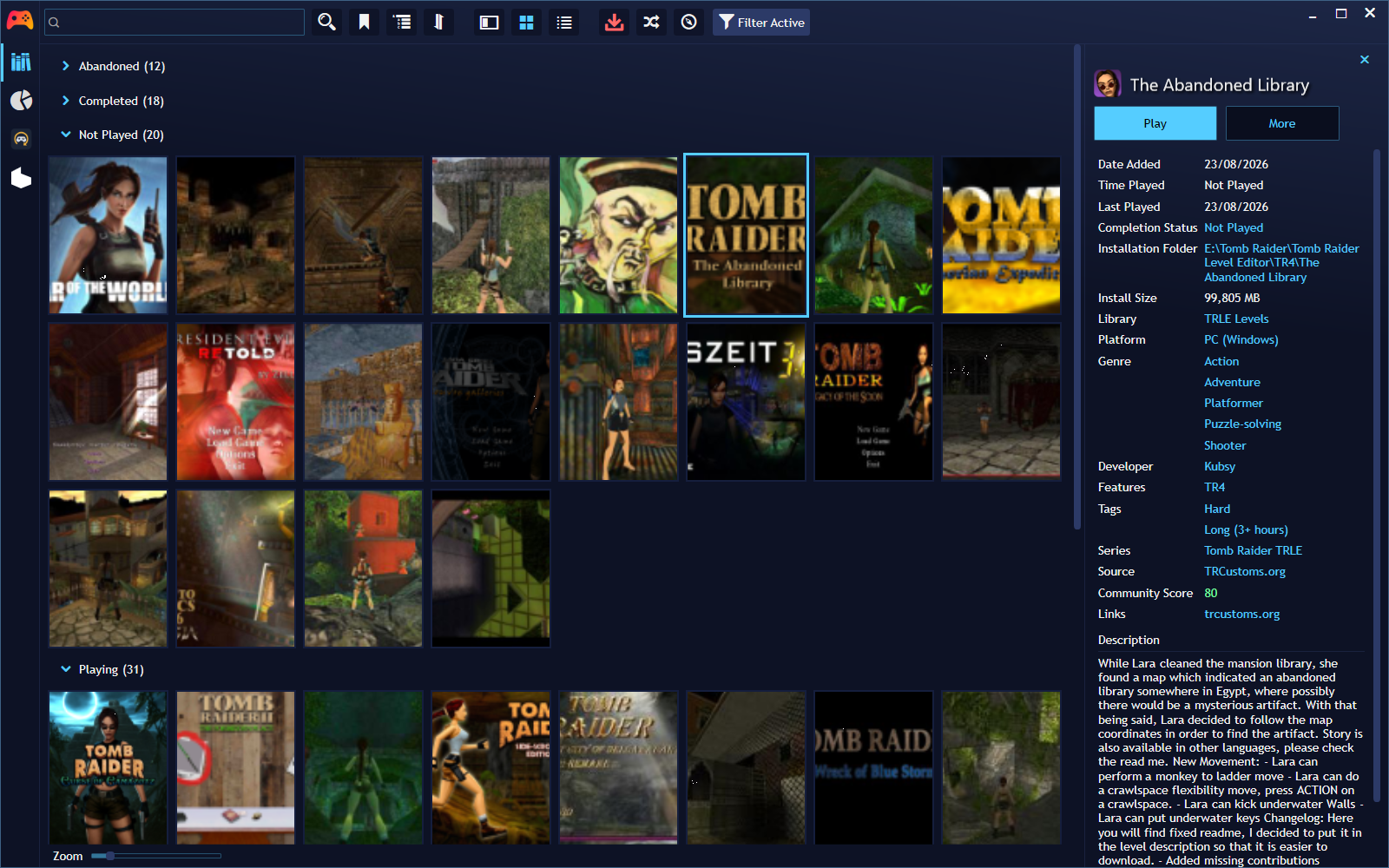
Custom levels made with the Tomb Raider Level Editor (TRLE) are a world of their own: thousands of levels, each in its own folder, on different engines, with savegames scattered everywhere. TRLE Levels brings all of that into Playnite: your levels appear as games with their cover and description from trcustoms.org, you can install new ones from Playnite itself, and your savegames follow you from one PC to another.
What it does
Catalogs your levels
- Every subfolder of the folders you configure is treated as one level. Category folders (
TR1…TR5,TEN) are entered automatically. - It picks the executable to launch for you: a level’s own
play.exeif it has one, thentombati.exe, thentomb2-5.exe/startgame.exe, and so on. - It uses the level’s own icon, extracted from its
.exe. - If a level’s folder disappears or comes back, its Installed status in Playnite updates by itself.
Metadata from trcustoms.org
- Name, description, genres, tags, author, community score, cover and background, plus a tag with the engine.
- Difficulty and duration are added as tags you can filter by (each one can be turned off).
- If a level can’t be matched automatically, Playnite’s own search dialog opens so you pick the right one.
Downloads and installs levels
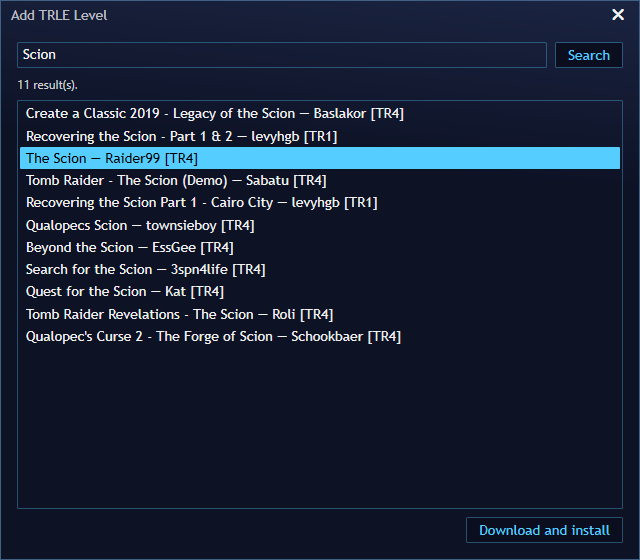
- Add trcustoms.org Levels: search by name, choose, and it downloads, extracts and catalogs the level in one step.
- Add Level From trcustoms.org List…: install from any user’s public trcustoms.org playlist.
- Playnite’s own Install button reinstalls a cataloged level that you had uninstalled.
- Downloads never overwrite an existing folder and are only extracted inside the target folder.
- New downloads are organized as
<Engine>/<Official name>. - Optional notifications when a level you installed has a newer version on trcustoms.org.
- A Setup action for engines that support it (TR2–TR5, TEN), to open the engine’s own configuration.
Savegames and progress across PCs
- It detects savegame files in the level folder, a
saves/savegamesubfolder, or one level deeper. - Shared folder (for example, in Dropbox): savegames upload automatically when a level closes, and can download automatically when it starts.
- Playtime, play count and completion status are backed up too, so they aren’t lost if a level is removed and added again.
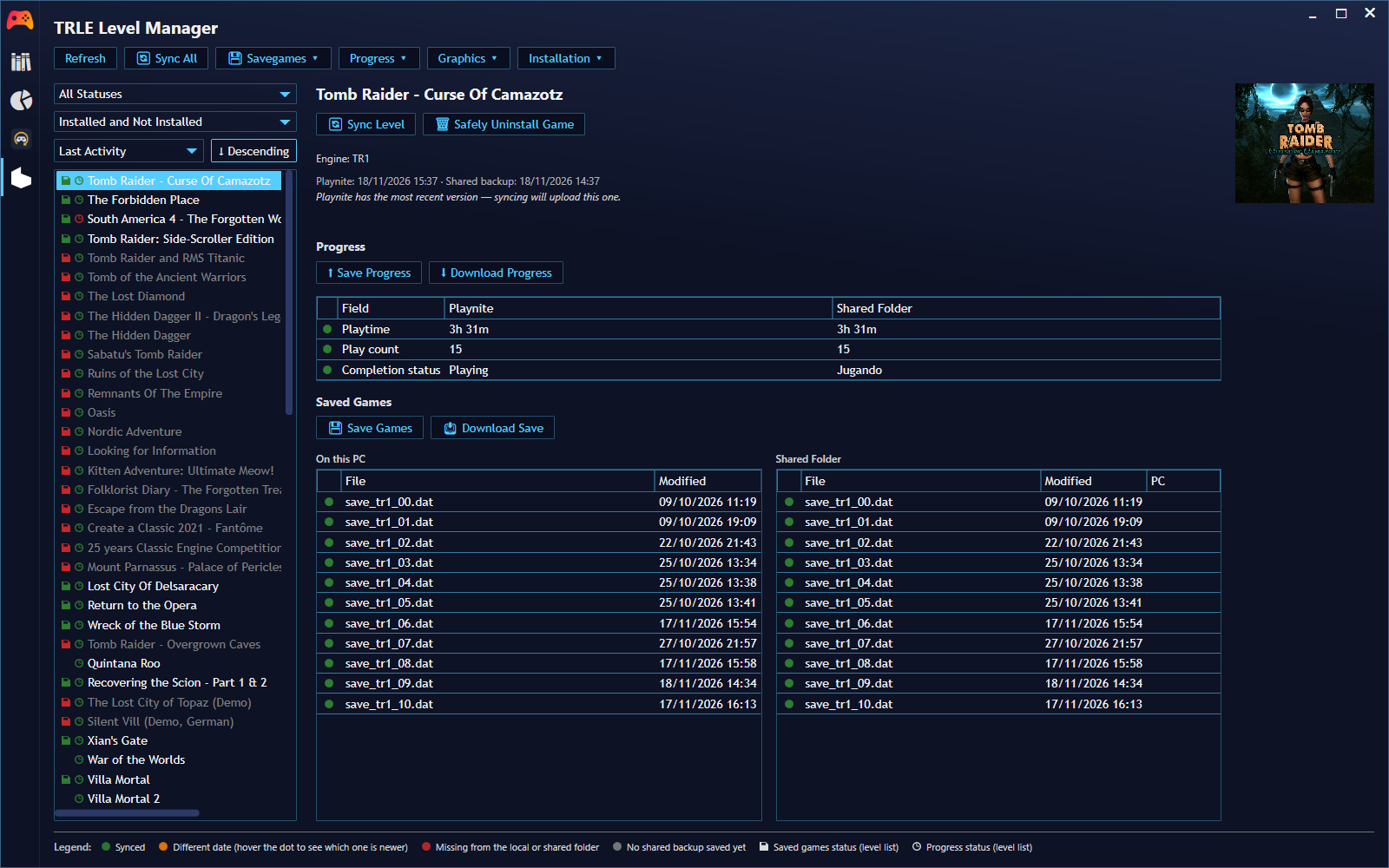
- The TRLE Level Manager sidebar panel compares local and shared savegames for every level, shows which PC uploaded each one, and lets you sync a level, sync everything, or Safely Uninstall Game (uploads everything first).
trcustoms.org playlist
- Sync With My trcustoms.org Playlist… fills in completion statuses that are still blank and offers to install the playlist levels you don’t have yet, filtered by status.
- Playnite always wins: a status you set by hand is never overwritten.
Extras
- TombATI resolution: sets the resolution of TR1 levels running on TombATI (presets from 1280×720 to 3840×2160, including 3440×1440 ultrawide), editing only the three resolution keys of
tombati.ini. - High-DPI display fix: applies Windows’ high-DPI override to old engine executables so they don’t look stretched or blurry.
- reWASD profile: applies a controller profile when a TRLE level starts and restores your default one when it closes.
- Merge duplicate TRLE levels…: cleans up repeated entries, with a confirmation for each kind.
- English and Spanish interface.
Requirements
- Windows and Playnite.
- Your TRLE levels in one or more folders (or none yet: you can download them from Playnite).
- Optional: a folder synced between PCs (Dropbox, OneDrive…) for savegames, and reWASD for controller profiles.
Installation
Playnite extension to manage TRLE (Tomb Raider Level Editor) custom levels: scanning, trcustoms.org metadata, shared savegames, and download/install.
Download (v0.2.5):
- Download the three
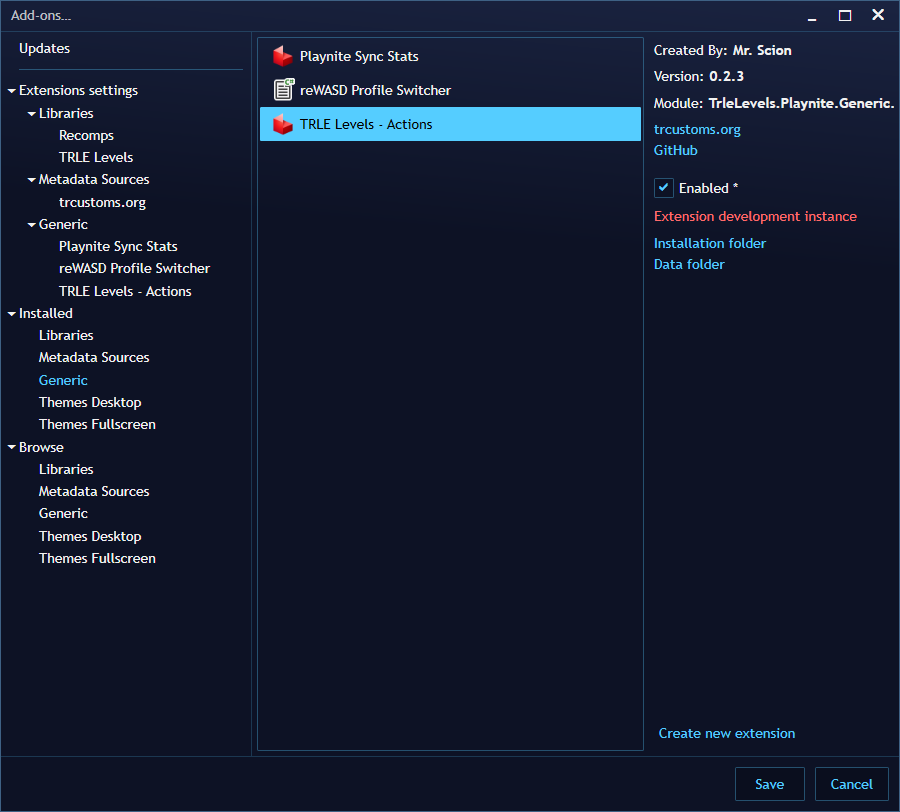
.pextfiles of the same version:TRLE-Levels-Library,TRLE-Levels-ActionsandTRLE-Levels-Metadata(above, or from the Releases page). - If you’re updating: in Main menu → Add-ons…, uninstall the three previous TRLE Levels extensions and restart Playnite.
- Drag the three
.pextfiles onto the Playnite window, one after another, without restarting in between. - Restart Playnite.
Setup
1. Your level folders
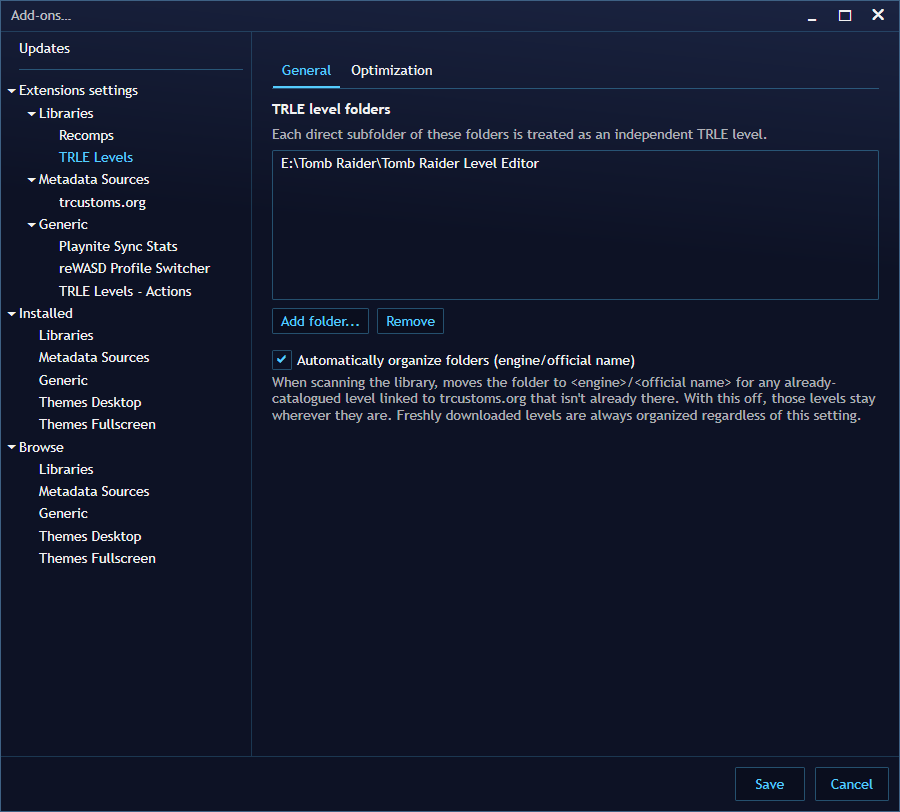
- Open Main menu → Add-ons… → Extensions settings → Libraries → TRLE Levels.
- In TRLE level folders, click Add folder… and choose the folder (or folders) that contain your levels, one subfolder per level.
- Optional: turn on Automatically organize folders (engine/official name) if you want existing levels moved to
<Engine>/<Official name>when scanning. - Run Main menu → Update Game Library. Your levels appear, matched against trcustoms.org wherever possible.
2. Shared savegames (optional)
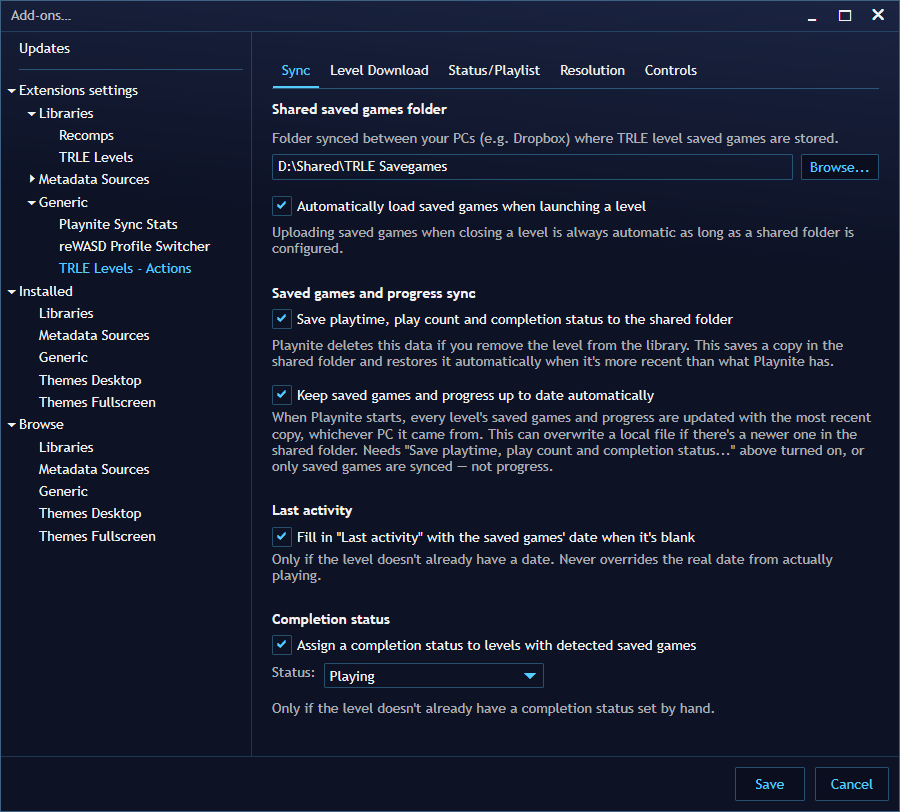
- Open Main menu → Add-ons… → Extensions settings → Generic → TRLE Levels - Actions.
- On the Sync tab, set the Shared saved games folder to a folder synced between your PCs.
- Choose whether to Automatically load saved games when launching a level and to Save playtime, play count and completion status to the shared folder.
The shared folder must not be the same as, or be inside, a level folder: the extension warns you and won’t save that setting.
3. Other tabs
- Level Download: what “uninstall” does (keep the level cataloged as not installed, which is recommended, or remove it), restoring savegames on reinstall, update notifications, and difficulty/duration tags.
- Status/Playlist: your trcustoms.org username, how playlist statuses map to Playnite completion statuses, and which ones are installed when syncing.
- Resolution: the TombATI resolution and the high-DPI fix, with buttons to apply them to every level at once.
- Controls: reWASD profile switching for TRLE levels.
Everyday use
- Install a new level: Main menu → Extensions → TRLE Levels → Add trcustoms.org Levels, search, choose, and Download and install.
- Import a playlist: Add Level From trcustoms.org List… and type a trcustoms.org username.
- Wrongly matched level: right-click it → TRLE Levels → Link to TRCustoms.org level….
- Before switching PC: open the TRLE Level Manager panel and check that everything is synced.
- Free up space without losing progress: Safely Uninstall Game from the panel; reinstall later with Playnite’s Install button.
Troubleshooting
- No levels appear after updating the library. Check that at least one level folder is set in the library settings (the extension shows a notification if none is).
- Playnite crashes on startup after an update. Uninstall the three TRLE Levels extensions, restart, and install the three
.pextof the same version together. - A level looks tiny or blurry. Apply the High-DPI display fix from the Resolution tab.
- Savegames don’t sync. Make sure the shared folder is set and isn’t the same as or inside a level folder.
Related
To switch reWASD profiles for all your games, not only TRLE levels, see reWASD Profile Switcher.
Frequently asked questions
Why are there three .pext files?
Playnite needs one package per extension type, so the project ships a Library extension (scans and catalogs levels), an Actions extension (menus, settings, savegames, downloads) and a Metadata extension (trcustoms.org data). They share an internal library, so all three must be installed together and from the same version, or Playnite can crash on startup.
Is it safe to use on my main Playnite library?
It's a beta and could have bugs that affect your library data. The recommended approach is to try it on an empty or throwaway Playnite library first.
Do I need a trcustoms.org account?
No. Searching, downloading and importing a user's public playlist work without logging in. Sending status changes back to trcustoms.org isn't implemented.
Can I keep my savegames on two PCs?
Yes. Set a shared savegames folder synced between your PCs (Dropbox, for example). Savegames are uploaded automatically when a level closes, and can be downloaded automatically when it starts. Playtime, play count and completion status can be backed up too.
Is it affiliated with trcustoms.org?
No. It's an independent, unofficial client of trcustoms.org's public API.
Does it change my levels' files?
Only when you ask for it: optional folder reorganization, the TombATI resolution patch (only the three resolution keys of tombati.ini), the optional high-DPI compatibility fix and the duplicate-merge tool, which warns before deleting a duplicate folder.
Repositories
Playnite extension to manage TRLE (Tomb Raider Level Editor) custom levels: scanning, trcustoms.org metadata, shared savegames, and download/install.
Version history
v0.2.5beta
- New warnings when no TRLE level folder is configured (the library previously imported nothing, silently), when the shared savegames folder isn't set, or when it's the same as / overlaps a level folder. Both settings dialogs refuse to save that overlap.
Install all three .pext together (uninstall the previous version of all three first, then restart Playnite).
v0.2.4beta
- Newly downloaded levels (search, playlist add, playlist sync, native Install button) are now always moved into
<Engine>/<Official name>, without needing "Reorganize TRLE folders" afterwards. The "Automatically organize folders" setting now only affects the library scan.
Install all three .pext together (uninstall the previous version of all three first, then restart Playnite).
v0.2.3beta
- Savegame detection now also checks "Savegame"/"Savegames" folders, not just "save"/"saves".
- Added an extension icon (traced from the TombEngine diamond) for the Playnite extensions list.
Install all three .pext files together, replacing any previous version.
v0.2.2beta
⚠️ Beta — still being tested. May have bugs, including ones that could affect your Playnite library. Try it on an empty/throwaway library first. See the README for details.
Installing / updating
Uninstall all three previous extensions first, restart Playnite, then install these three .pext files together (all three are required — installing only one or two will leave the shared TrleLevels.Core assembly out of sync and can crash on startup).
What's new in this release
- High-DPI display fix: applies Windows' "Override high DPI scaling behavior... Application" to each level's play executable, with auto-apply on install and a library-wide "apply now" action.
- reWASD gamepad profile auto-switching: applies a chosen profile when a TRLE level starts and a default one back when it closes, configurable in a new Controls tab, with test buttons.
- Bulk "Uninstall Filtered" in the savegames panel: safely uninstalls every installed level matching the completion-status filter, with a confirmation list and a cancelable progress bar.
- Savegames panel reorganized into scoped action menus (Savegames / Progress / Graphics / Installation), with quick links to bulk actions that used to require the main menu or the settings screen.
- Three "Sync All (newest wins)" actions at different scopes — saves + progress together, saves only, or progress only — replacing the old "never overwrites" sync-all, plus a new bulk "Download Saves" action.
- Panel renamed to "TRLE Level Manager" with a new sidebar icon.
- Fix: uninstalling a level no longer causes it to look "recently played" after the next library sync (its own pre-delete progress backup was being mistaken for fresh play activity).
v0.2.1beta
⚠️ Beta — still being tested. May have bugs, including ones that could affect your Playnite library. Try it on an empty/throwaway library first. See the README for details.
Installing / updating
Uninstall all three previous extensions first, restart Playnite, then install these three .pext files together (all three are required — installing only one or two will leave the shared TrleLevels.Core assembly out of sync and can crash on startup).
What's new in this release
- Per-file savegame push/pull from the savegames panel (replace or keep both, preserving zero-padded slot naming), plus a byte-content fallback so files with the same content but different mtime precision show as synced instead of a false conflict.
- Progress backup/restore across PCs via a shared completion-status bucket, with a safe fallback that never blanks out a status when the bucket is unmapped or missing.
- TombATI resolution patch support (tombati.ini + glrage.ini), with a library-wide "apply now" action and auto-apply on install/reinstall.
- trcustoms.org playlist import, status cross-sync (on install, on library update, and via manual "sync with my playlist"), with per-status install filters.
- Native reinstall support via Playnite's "Install" button, safe uninstall, and duplicate merging both by folder and by trle_id.
- Optional metadata-refresh/auto-organize toggles to reduce load on trcustoms.org during routine library scans.
- Full EN/ES localization across all three extensions.
- Savegames panel redesign: engine + TombATI patch status line, upload/download-all-progress actions, reordered detail layout.
- Embedded fallback for System.Text.Json's dependency chain, for hosts where the physical DLLs don't survive installation.
Official downloads
Always download from the official sites below.
- Playnite — free, open-source game library manager for Windows
- trcustoms.org — community database of TRLE custom levels: search, downloads, ratings and playlists
- Playnite manual: installing extensions
- reWASD (optional) — only if you want automatic controller profiles for TRLE levels
Found a bug or have an idea?
Report it on the project’s GitHub page: every report is read, and fixes ship in new releases. Include what you did, what happened, and your Playnite and extension versions (a screenshot helps). You need a free GitHub account.
Related articles
Projects
Quiver Library: your Quiver Launcher recomps inside Playnite
Free Playnite extension that imports the recomps and PC ports installed with Quiver Launcher, with play time tracking, installs, updates and save backups.
· Windows
Projects
reWASD Profile Switcher: auto-switch reWASD profiles in Playnite
Free Playnite extension that switches your reWASD controller profile when a game starts and stops, with per-library profiles and a Steam Input passthrough mode.
· Windows