reWASD Profile Switcher: auto-switch reWASD profiles in Playnite
Free Playnite extension that switches your reWASD controller profile when a game starts and stops, with per-library profiles and a Steam Input passthrough mode.
Key facts
- reWASD Profile Switcher is a free Playnite extension that applies a reWASD controller profile when a game starts and goes back to your desktop profile when it closes.
- Each controller gets a default profile plus optional per-library overrides (for example, one profile for Steam games and another for emulators).
- A library can be set to Passthrough: reWASD's remap is turned off so Steam Input sees your real controller instead of a virtual Xbox 360 pad.
- Requires Windows, Playnite and reWASD. Install it from a single
.pextfile; it is off by default.
- Platforms
- Windows
- Source code
- MrScion/reswad-playnite-ext · v0.1.7
If you use reWASD to remap your controller, you probably have one profile for the desktop and several for games. reWASD Profile Switcher is a Playnite extension that does the switching for you: when you launch a game from Playnite it applies the right profile, and when you close it, it puts your desktop profile back.
What it does
- Switches on game start and stop. When a game starts, each configured controller gets the profile for that game’s library or, if there isn’t one, its default profile. When the game closes, every controller goes back to its default profile.
- Several controllers at once. Each controller (Xbox, DualSense, Steam Controller…) has its own reWASD Device ID, default profile and slot.
- Per-library overrides. One profile for your Steam games, another for emulators, another for manually added games: the profile is chosen by the Playnite library the game belongs to.
- Passthrough mode. A library can turn reWASD’s remap off instead of applying a profile. That releases reWASD’s virtual Xbox 360 controller so the real device is visible, for example so Steam Input recognises a real Steam Controller.
- Detects connected controllers. When you add a device, it lists the gamepads currently plugged in to prefill the name.
- Profile picker. If you point it at reWASD’s profiles folder, you choose
.rewasdfiles from a list instead of browsing the disk. - Test buttons to apply any profile on the spot and check it works.
- English and Spanish interface.
It works by calling reWASDCommandLine.exe, the command-line tool that ships with reWASD, so it doesn’t modify reWASD or its profiles.
Requirements
- Windows (Playnite and reWASD are Windows programs).
- Playnite, the free game library manager.
- reWASD installed on the same PC, with at least one profile created.
- At least one game in your Playnite library for each library you want to give its own profile.
Installation
A Playnite extension that automatically switches your reWASD gamepad profile(s) when a game starts and stops, by shelling out to reWASDCommandLine.exe.
Download (v0.1.7):
- Download the
.pextfile from the latest release (above, or from the Releases page). - Drag the
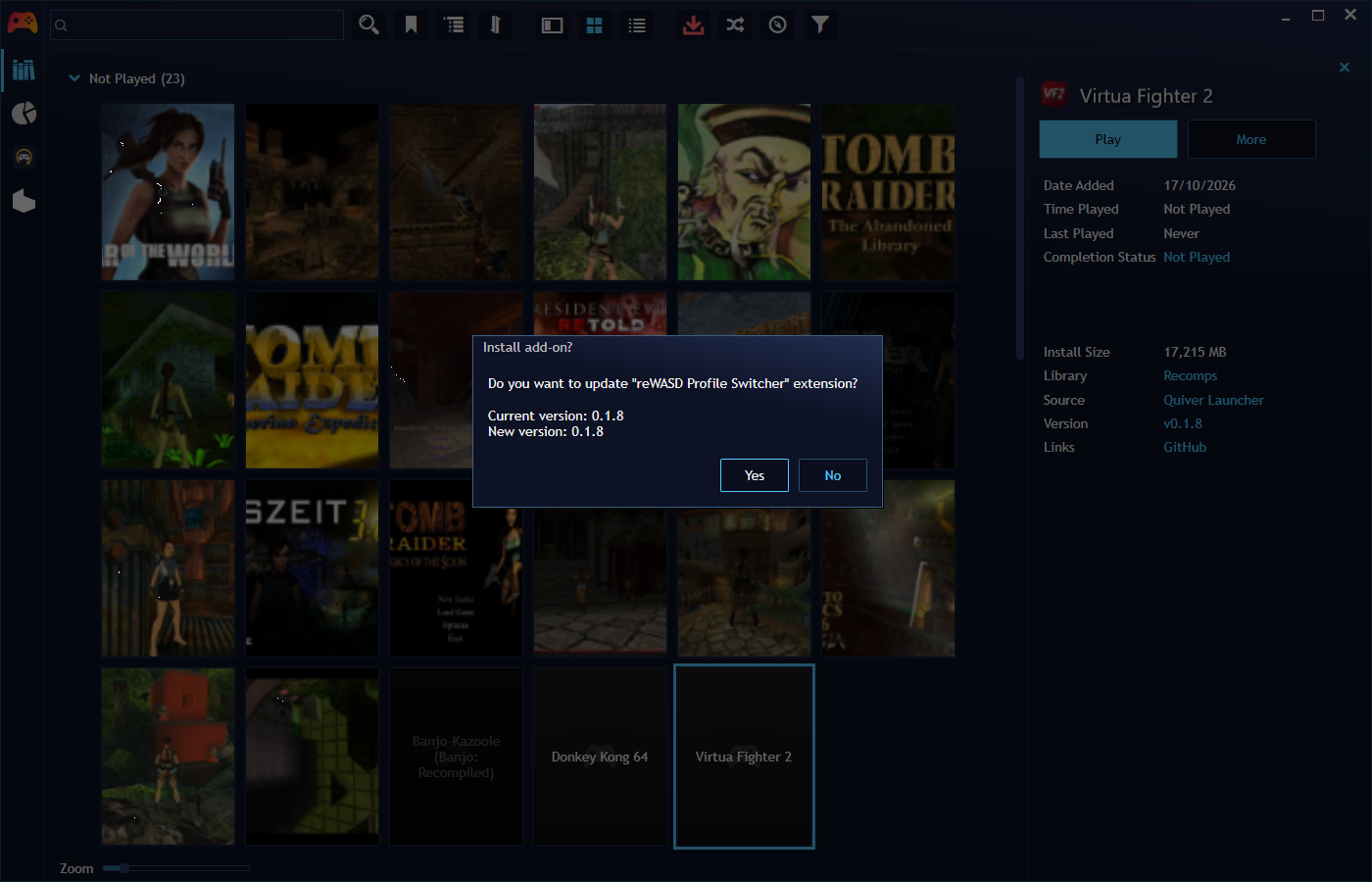
.pextfile onto the Playnite window and confirm the installation. - Restart Playnite.
Setup
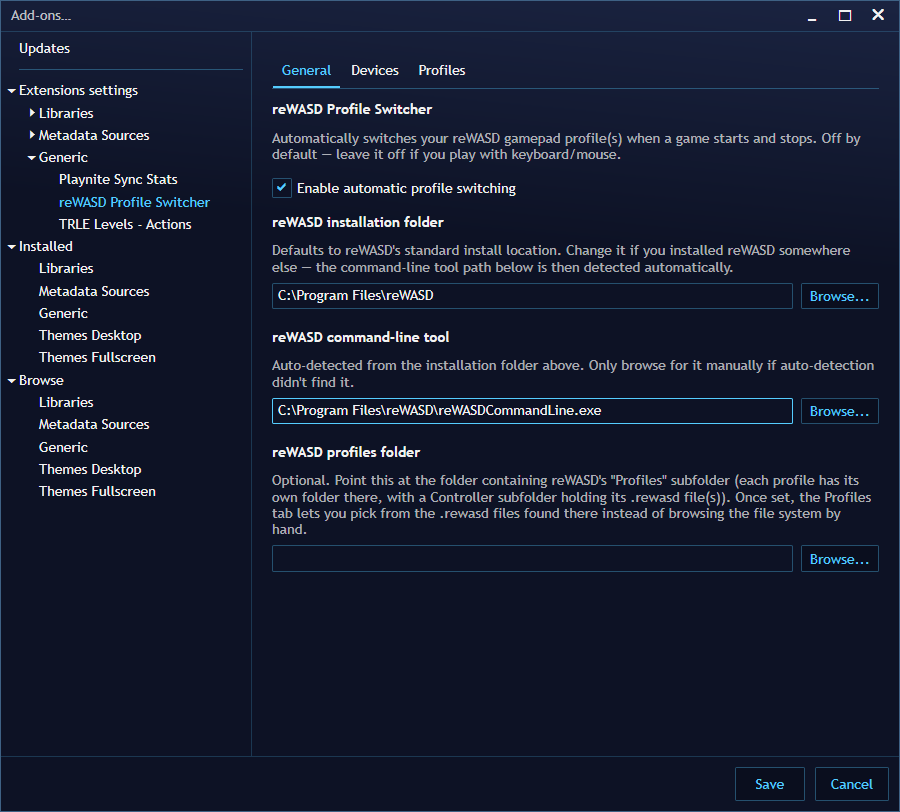
Open Main menu → Add-ons… → Extensions settings → Generic → reWASD Profile Switcher. The settings have three tabs.
1. General
- Tick Enable automatic profile switching (it’s off by default).
- reWASD installation folder: it defaults to reWASD’s standard location (
C:\Program Files\reWASD). Change it only if you installed reWASD somewhere else; the reWASD command-line tool below is then detected automatically. - reWASD profiles folder (optional but recommended): point it at the folder that contains reWASD’s
Profilessubfolder. From then on you’ll pick profiles from a list.
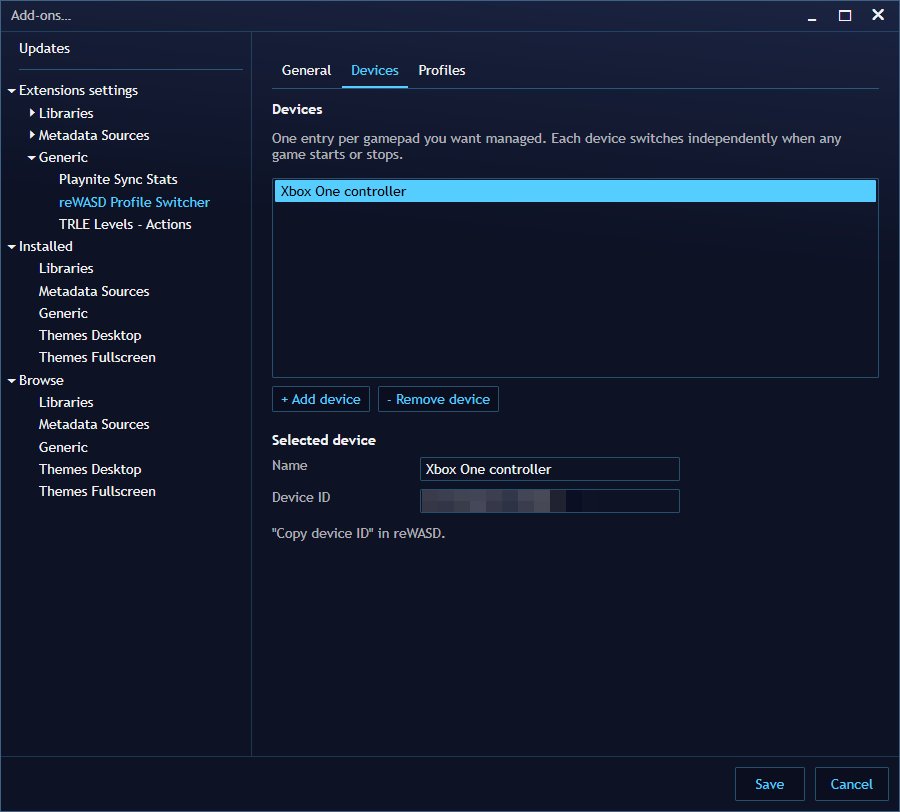
2. Devices
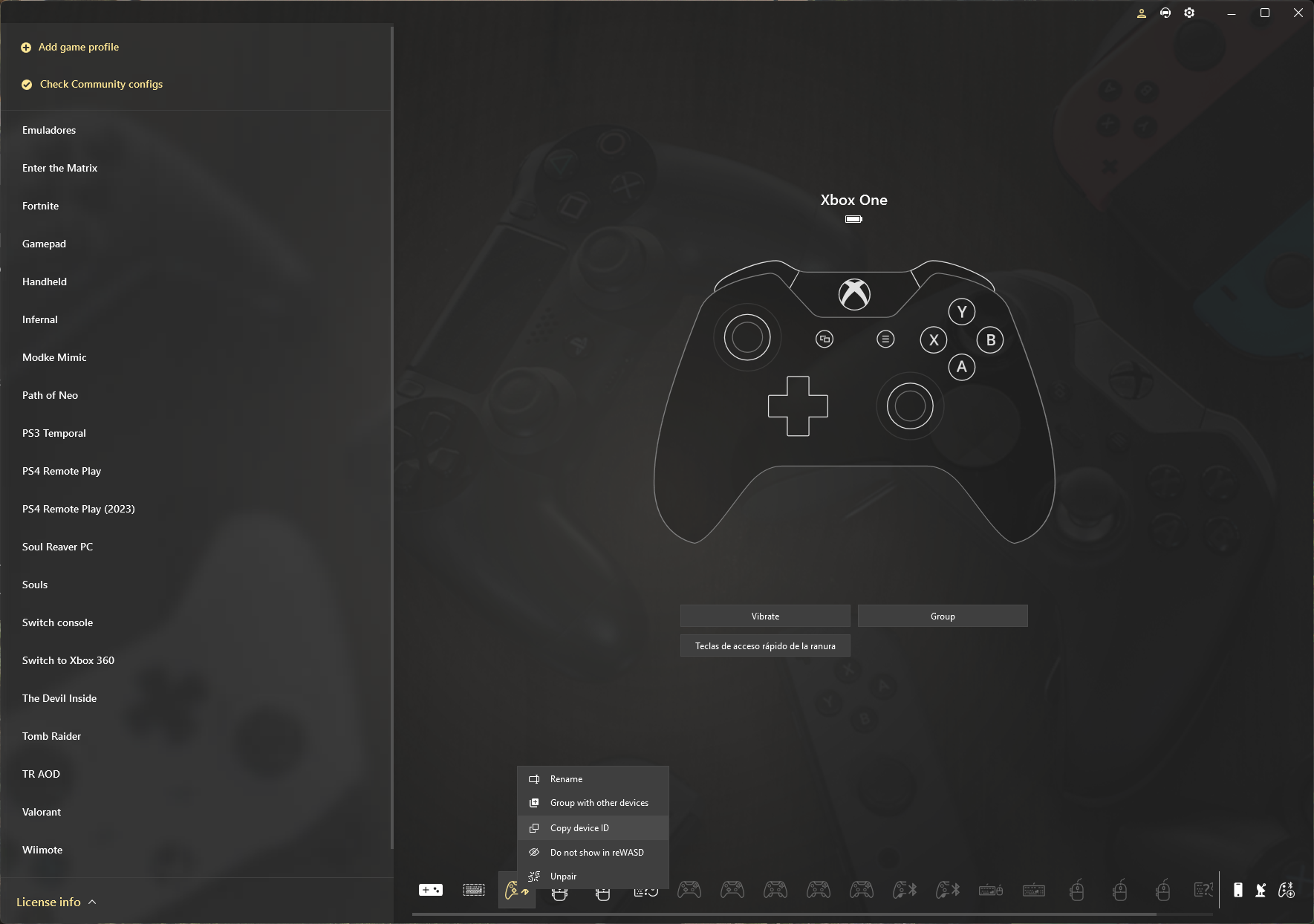
- Click + Add device. A list of the controllers connected right now appears; choose yours, or add it by hand.
- In reWASD, right-click that controller and choose Copy device ID.
- Paste it into Device ID.
Repeat for every controller you want the extension to manage.
3. Profiles
With a device selected:
- Choose its Default profile and Slot (1–4). This is the profile applied every time a game closes, and the fallback for libraries with no override. Use Test default profile now to apply it on the spot.
- Optionally, click + Add library profile…, pick a Playnite library and decide how it’s handled:
- Use a profile file: the profile applied when a game from that library starts.
- Passthrough: turns the remap off for that library so the real controller is seen as-is.
- Test each override with its Test button.
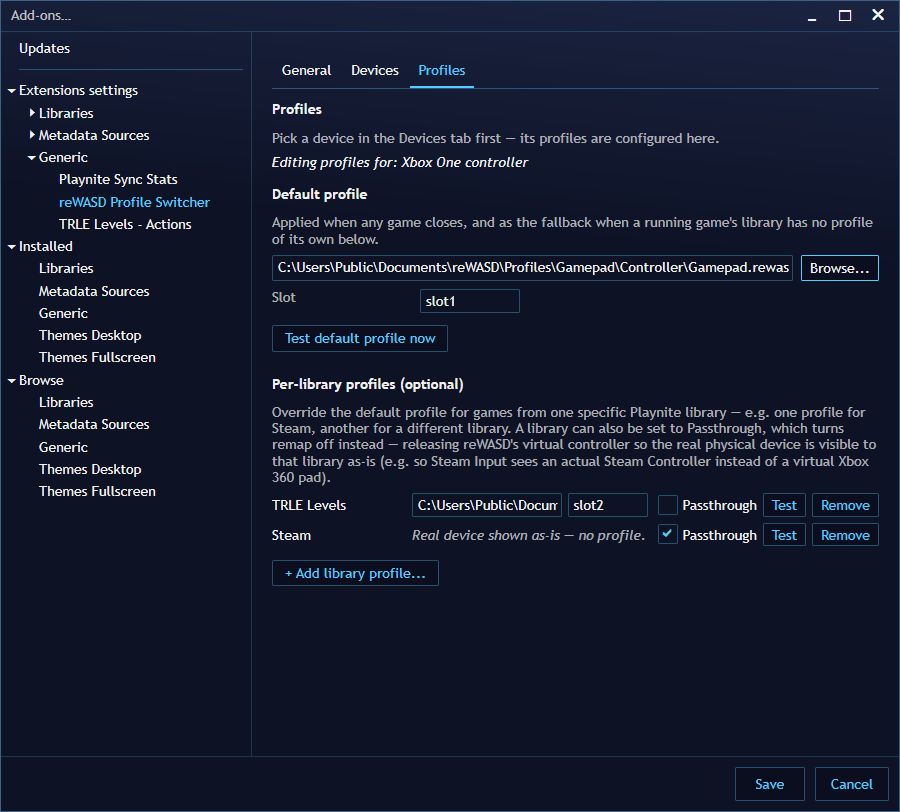
That’s it: launch any game from Playnite and the profile changes by itself.
Typical setups
| Situation | Default profile | Library override |
|---|---|---|
| Desktop navigation with the pad, games with a gaming profile | Desktop profile | Every library you play → gaming profile |
| Steam games use Steam Input, the rest use reWASD | Gaming profile | Steam → Passthrough |
| Emulators need a different layout | Gaming profile | Emulator library → emulator profile |
Troubleshooting
- Nothing happens when a game starts. Check that the master switch on the General tab is on, that the command-line tool path is filled in, and that the Device ID was copied from reWASD. Use the Test buttons to confirm reWASD responds.
- The command-line tool isn’t found. Fix the reWASD installation folder or browse to
reWASDCommandLine.exeby hand. - A library is missing from the list. Add at least one game from that library to Playnite first.
- Steam doesn’t detect my Steam Controller. Set the Steam library to Passthrough so reWASD’s virtual pad is released while those games run.
Related
If you play Tomb Raider custom levels, the TRLE Levels extension includes its own reWASD profile switching for TRLE levels.
Frequently asked questions
Does it work without reWASD?
No. The extension only tells reWASD which profile to apply, through reWASD's own command-line tool (reWASDCommandLine.exe). reWASD has to be installed on the same PC.
Where do I find my controller's Device ID?
In reWASD: right-click your controller and choose “Copy device ID”, then paste it in the Devices tab. reWASD doesn't expose that ID anywhere else, so it can't be filled in automatically.
What does Passthrough do?
Instead of applying a profile, it turns reWASD's remap off while a game from that library is running, so the physical controller is seen as-is. It's useful when Steam Input should handle a real Steam Controller instead of reWASD's virtual pad. Remap is turned back on when the game closes.
Can I use several controllers at once?
Yes. Add one entry per controller in the Devices tab; each one switches independently with its own default profile and library overrides.
Why can't I pick one of my libraries?
The library list is built from the games already in your Playnite database, so a library needs at least one game before it shows up. Manually added games appear as their own group.
Do I need it if I play with keyboard and mouse?
No. The integration is off by default and does nothing until you enable it.
Repositories
A Playnite extension that automatically switches your reWASD gamepad profile(s) when a game starts and stops, by shelling out to reWASDCommandLine.exe.
Version history
v0.1.7
- Per-library override can now be Passthrough instead of a profile file: turns reWASD's remap off/on so Steam Input sees the real physical controller instead of reWASD's virtual Xbox 360 pad.
- General tab: reWASD installation folder setting, auto-detecting reWASDCommandLine.exe underneath it.
- General tab: reWASD profiles folder setting; the Profiles tab now offers a picker of the .rewasd files found there instead of manual file browsing.
- Slot selection is now a Slot 1-4 dropdown instead of free text.
Official downloads
Always download from the official sites below.
- Playnite — free, open-source game library manager for Windows
- reWASD — commercial controller remapper for Windows, with a free 7-day trial
- Playnite manual: installing extensions
Found a bug or have an idea?
Report it on the project’s GitHub page: every report is read, and fixes ship in new releases. Include what you did, what happened, and your Playnite and extension versions (a screenshot helps). You need a free GitHub account.
Related articles
Projects
Quiver Library: your Quiver Launcher recomps inside Playnite
Free Playnite extension that imports the recomps and PC ports installed with Quiver Launcher, with play time tracking, installs, updates and save backups.
· Windows
Projects
TRLE Levels: manage Tomb Raider custom levels in Playnite
Free Playnite extension for TRLE custom levels: scan folders, trcustoms.org metadata, one-click downloads and savegames synced between PCs.
· Windows