Quiver Library: your Quiver Launcher recomps inside Playnite
Free Playnite extension that imports the recomps and PC ports installed with Quiver Launcher, with play time tracking, installs, updates and save backups.
Key facts
- Quiver Library is a free Playnite extension that adds the recomps and PC ports installed with Quiver Launcher to Playnite, as a library called Recomps.
- Playnite starts each game's real program, so play time is tracked; installs, uninstalls and updates are still done by Quiver.
- It knows how 146 ports are launched (which program starts the game, which one is its setup tool and where it keeps its saves).
- Optional extras: portable installs, save backups with Ludusavi, display settings for some games and an experimental achievements export.
- Version 0.3.10. The GitHub repository and the download will be public in the next few days.
- Platforms
- Windows
- Source code
MrScion/quiver-recomp-playnite-ext· public in the next few days · v0.3.10
Quiver Launcher is the easiest way to find and install recompilations and PC ports: Zelda 64: Recompiled, Unleashed Recompiled, Mario Kart 64, Bloodborne and many more. But if you keep the rest of your games in Playnite, those ports live in a separate launcher, without play time or stats. Quiver Library puts them in Playnite with everything else, while Quiver keeps managing their files.
What it does
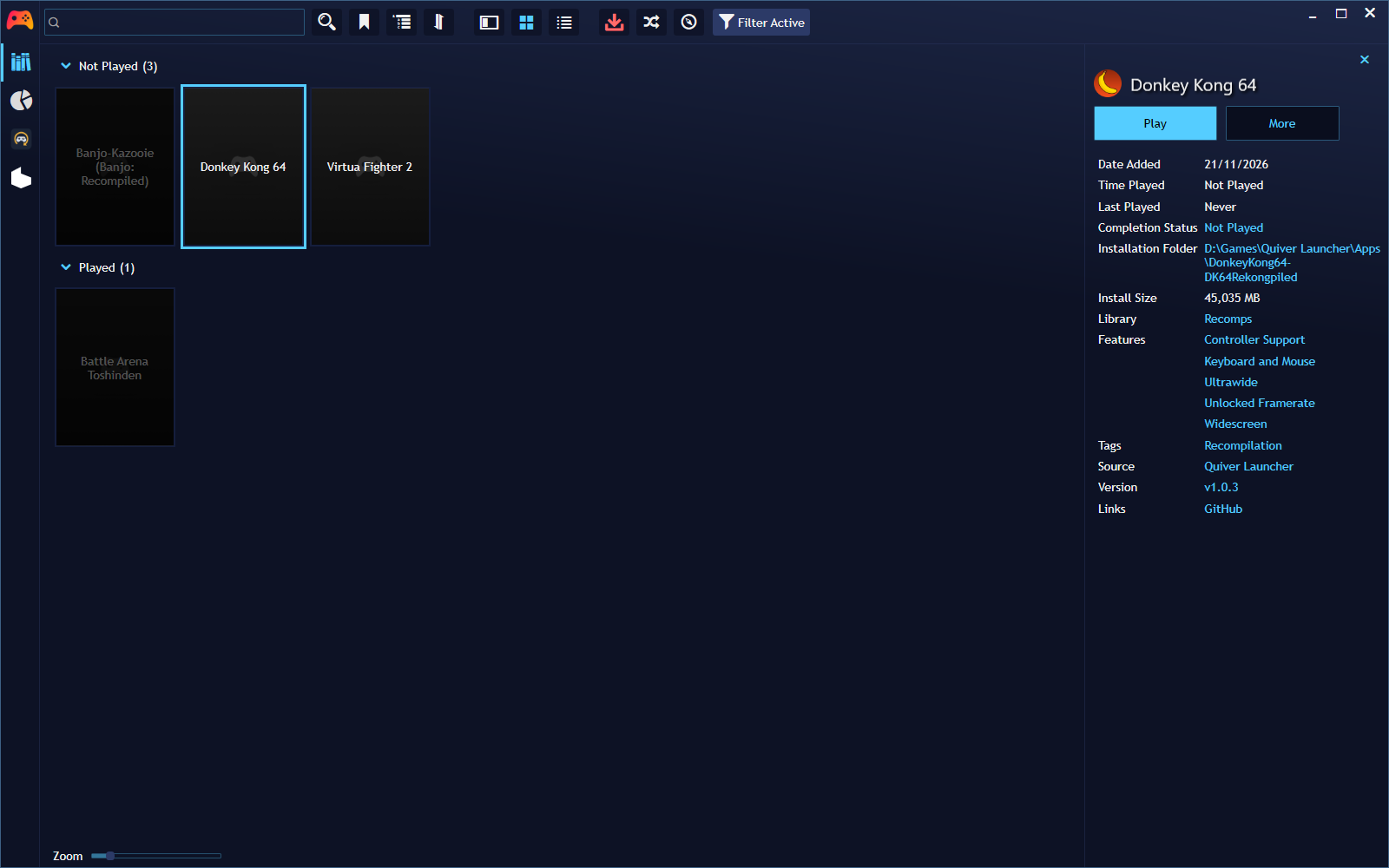
- Imports what you have installed. The apps installed in Quiver appear in Playnite in a library called Recomps, with Quiver Launcher as their source. The install status is refreshed on every library update.
- Install and uninstall from Playnite. Playnite’s buttons run Quiver in the background (Install with Quiver / Uninstall with Quiver). An uninstalled game stays in Playnite as not installed, with its play time and stats.
- Play starts the real game. Playnite launches the program that runs the game, so it records play time. Launchers, settings tools, second renderers or editors that some ports include become the game’s other actions, such as Setup.
- Knows 146 ports. A built-in database says which program starts each game (with arguments such as
--playto skip a launcher), which ones are extra actions and where each one keeps its saves. Ports it doesn’t know are worked out automatically. - Games with their own installer. Some ports install or build the game in a folder of your choice (Tekken 6, Super Mario Galaxy, Burnout Revenge…). Install it inside the app’s folder and Play finds it; anywhere else, choose the program once.
- Last played in sync. The most recent date wins between Playnite and Quiver’s “Last played” sort, whichever you launched from.
- Update everything at once. Update all Quiver apps updates every app, one after another, with a progress window you can cancel.
- Recomps: installers panel. A sidebar panel lists the apps whose game is installed or built by its own installer or launcher, and tells you when Quiver has downloaded a newer version that still has to be installed.
- Optional extras (off by default): portable installs (saves and settings in each game’s own folder), save backups with Ludusavi, full screen and internal resolution (1080p, 1440p or 4K) for the games that support it, and an experimental achievements export for Playnite Achievements.
- English and Spanish interface.
Requirements
- Windows, Playnite 10 (SDK 6.16 or newer).
- Quiver Launcher for Windows, portable or installed, opened at least once so it creates its library.
Installation
- Download
QuiverLibrary_<version>.pextfrom the Releases page. - Double-click it, or drag it onto the Playnite window, and confirm the installation.
- Restart Playnite.
Setup
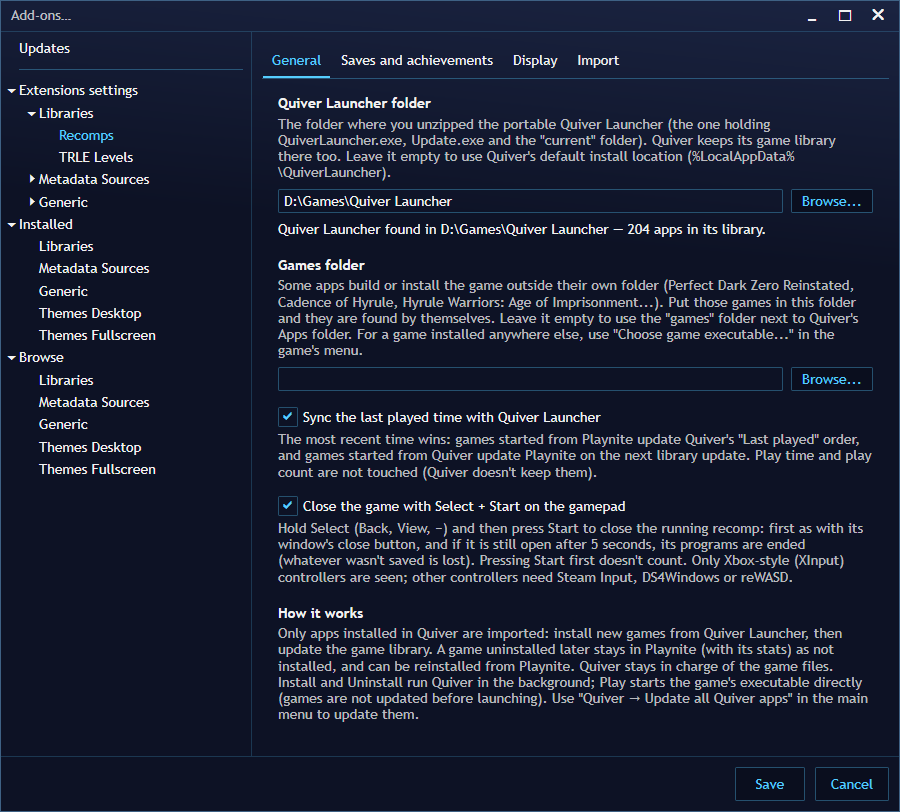
- Open Main menu → Add-ons… → Extensions settings → Libraries → Recomps.
- In Quiver Launcher folder, choose the folder where you unzipped the portable Quiver (the one with
QuiverLauncher.exe,Update.exeandcurrent\). If you installed Quiver normally, leave it empty: it uses the default location,%LocalAppData%\QuiverLauncher. - Check the status line: it tells you whether Quiver and its library were found and how many apps it has.
- Run Main menu → Update Game Library. Your installed Quiver apps appear under Recomps.
Other settings
- General: Sync the last played time with Quiver Launcher.
- Saves and achievements: Make the installed apps portable, Back up the saves with Ludusavi and Export achievements for Playnite Achievements (EXPERIMENTAL).
- Display: Full screen and Internal resolution for the games the extension knows how to set up (NeverDead, Tekken 6 and Bayonetta 3 for now).
- Import: which of Quiver’s tags are imported as the game’s features.
Everyday use
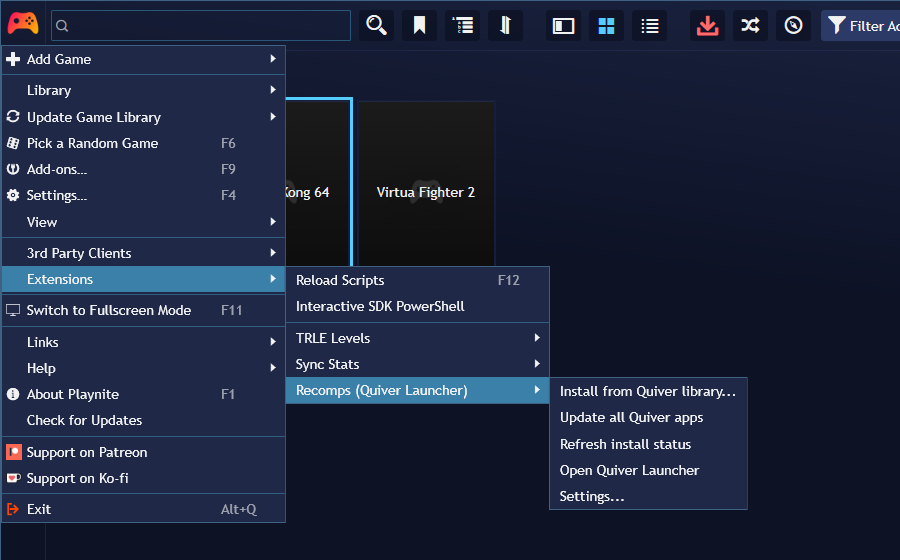
- Install a new game: Main menu → Extensions → Recomps (Quiver Launcher) → Install from Quiver library… lists the apps in your Quiver library that aren’t installed yet.
- Update everything: Update all Quiver apps, from the same menu.
- Right-click a game → Recomps (Quiver Launcher): Open saves folder, Choose game executable… and Use the default game executable.
- After Quiver updates a game with an installer: check the Recomps: installers panel and run its installer again if it says so.

Good to know
- Games start without going through Quiver, so they aren’t updated on launch: use Update all Quiver apps from time to time.
- Don’t install or uninstall the same app from Quiver’s window and from Playnite at the same time.
- If a game has several programs and none can be told apart, choose its program with Choose game executable… (or open it once from Quiver and pick it there).
Related
- reWASD Profile Switcher: switch controller profiles automatically when these games start.
- TRLE Levels: the same idea for Tomb Raider custom levels.
Frequently asked questions
Do I still need Quiver Launcher?
Yes. Quiver Launcher downloads, installs, updates and uninstalls the apps; the extension only shows them in Playnite and starts them. Playnite's Install and Uninstall buttons call Quiver in the background.
Are games updated when I start them from Playnite?
No. Games start directly, without going through Quiver, so they aren't updated on launch. Use Update all Quiver apps from the extension's menu from time to time.
Why don't all my Quiver apps appear?
Only the apps installed in Quiver are imported. Install new games from Quiver Launcher (or with Install from Quiver library...) and then update Playnite's game library. Apps that are only in Quiver's App Catalog have to be added to your Quiver library first.
A game installs into another folder with its own installer. Does that work?
Yes. If you install it inside the app's folder, Play finds it there and the installer stays as the Setup action. Anywhere else, pick the game's program once with Choose game executable....
Does it track achievements?
Only experimentally, and off by default: for the few ports whose achievement files it understands, it can export a CSV to import in the Playnite Achievements extension. It is not finished yet.
What happens to a game I uninstall?
It stays in Playnite as not installed, keeping its play time and stats, and can be reinstalled from Playnite.
Official downloads
Always download from the official sites below.
- Playnite — free, open-source game library manager for Windows
- Quiver Launcher — free, open-source launcher for recomps, source ports and PC ports
- Quiver Launcher on GitHub
- Ludusavi for Playnite (optional) — for the save backups
- Playnite Achievements (optional) — for the experimental achievements export
- Playnite manual: installing extensions
Found a bug or have an idea?
Bug reports and ideas will be welcome on the project’s GitHub page as soon as the repository is public (in the next few days).
Related articles
Projects
reWASD Profile Switcher: auto-switch reWASD profiles in Playnite
Free Playnite extension that switches your reWASD controller profile when a game starts and stops, with per-library profiles and a Steam Input passthrough mode.
· Windows
Projects
TRLE Levels: manage Tomb Raider custom levels in Playnite
Free Playnite extension for TRLE custom levels: scan folders, trcustoms.org metadata, one-click downloads and savegames synced between PCs.
· Windows