How to transfer your Final Fantasy VII Remake PS4 save to PC (Steam)
Step by step: copy your Final Fantasy VII Remake save from the PS4 to a USB drive, decrypt it with Save Wizard and carry on in the Steam version.
Key facts
- The PC version of Final Fantasy VII Remake Intergrade reads the PS4 save file as it is: it only has to be decrypted first.
- Copy the save to a USB drive from the PS4 menu, open it on the PC with Save Wizard for PS4 MAX, export each
ff7remake0XXfile and add the.savextension. - Drop the files into
Documents\My Games\FINAL FANTASY VII REMAKE\Steam\<your Steam ID>\and load the game. - Save Wizard is a paid program; it is the only step that costs money. Nothing on the PS4 is modified.
- Only PS4 saves work, not the native PS5 version (Intergrade on PS5). Time needed: about 20 minutes.
- Original platform
- PlayStation 4 (2020)
- Platforms
- Windows
Final Fantasy VII Remake came out on PS4 in 2020 and later reached PC as Final Fantasy VII Remake Intergrade, on the Epic Games Store and then on Steam. The good news if you already played it on PS4 is that the PC version uses the same save format: once the file is decrypted, it can be copied as it is. That means you can carry on your playthrough, or finish the 100 %, on PC.
The only hurdle is that PS4 saves are encrypted, and decrypting them needs Save Wizard for PS4 MAX, a paid program. Everything else is free and nothing on the console is modified.
Step 1: copy the save to a USB drive on the PS4
- Plug the USB drive into the PS4.
- Go to Settings → Application Saved Data Management → Saved Data in System Storage → Copy to USB Storage Device.
- Choose Final Fantasy VII Remake, select all its saves and copy them.
The PS4 creates a PS4\SAVEDATA folder on the drive with the encrypted saves. Don’t rename or move anything inside it.
Step 2: open the save with Save Wizard
- Plug the USB drive into the PC and open Save Wizard for PS4 MAX.
- On My Saves it detects the PS4 saves on the drive by itself. If it doesn’t, pick the drive letter in USB DRIVE, at the bottom left.
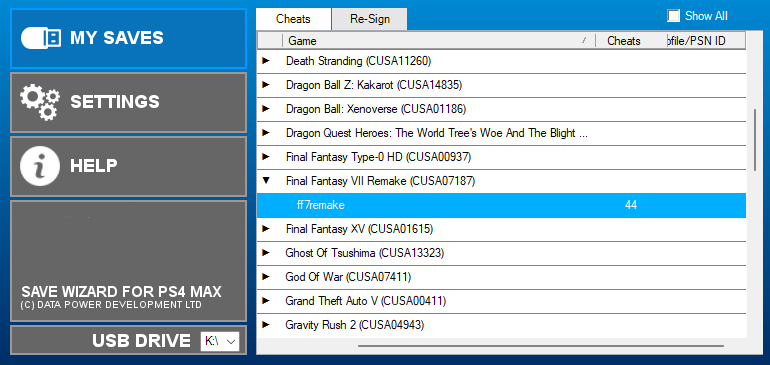
- In the list of games, expand Final Fantasy VII Remake to see your save.
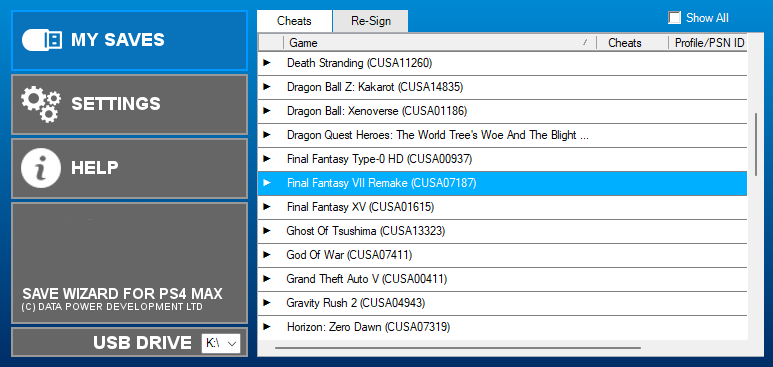
- Right-click the save (it’s called
ff7remake) and choose Advanced Mode. Save Wizard decrypts it, which can take several minutes: be patient and don’t close the program.
Step 3: export each save file
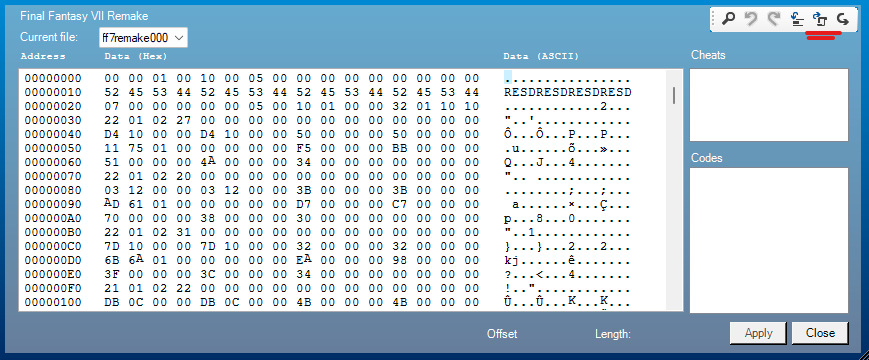
When the decryption finishes, a window opens with the save’s contents in hexadecimal. You don’t need to touch any of it.
- The Current file menu, at the top left, lists the files inside the save:
ff7remake000,ff7remake001and so on, one per save slot. - Choose a file and click the export icon at the top right (underlined in red in the screenshot). Save it in an easy folder, such as the Desktop.
- Repeat it for every slot you want to keep.
The exported files have no extension. Add .sav to each one so that ff7remake000 becomes ff7remake000.sav. If Windows hides extensions, turn on View → File name extensions in File Explorer first.
Step 4: copy the files to the PC version
- Start Final Fantasy VII Remake Intergrade on PC, start a New Game and play until you reach the first gameplay section, so the game creates its save folder. Then close the game.
- Open this folder (the last one is your 64-bit Steam ID, a long number):
%USERPROFILE%\Documents\My Games\FINAL FANTASY VII REMAKE\Steam\<your Steam ID>\- Make a copy of the folder’s contents somewhere else, just in case.
- Drag your
.savfiles into it and replace the files with the same name. Leave the rest of the files as they are.
Step 5: load your save
Start the game again and choose Continue or Load: your PS4 save is there, with its story progress, materia and items.
If something goes wrong
- The game doesn’t show your save: check that each file ends in
.savand not in.sav.txtor similar, and that it’s in the folder with your Steam ID, not in the parent folder. - The game’s own save comes back: Steam Cloud restored it. Start the game again and, if Steam warns about a conflict, keep the files on this computer.
- Save Wizard doesn’t find the save: copy it again from the PS4 with Copy to USB Storage Device and don’t change the
PS4\SAVEDATAfolder. - The save is from the PS5 version: it can’t be transferred with this method.
Good to know
- This method relies on the PC and PS4 versions sharing the same save format. A game update could change that, so keep your original files.
- Save Wizard is a third-party commercial product, not affiliated with Square Enix or Sony. Check its website for the current price and compatibility list.
- The same method also works for other games whose PC version reads PS4 saves, such as Marvel’s Spider-Man Remastered, with small differences in the file names.
Frequently asked questions
Does it work with the PS5 version?
No. Save Wizard can only decrypt PS4 saves. If you played the PS4 version on a PS5, copy that PS4 save; saves from the native PS5 version (Intergrade) can't be transferred this way.
Is there a free alternative to Save Wizard?
Not for a standard PS4. Decrypting PS4 saves needs either Save Wizard or a console with custom firmware, which this guide doesn't cover.
Does it work with the Epic Games Store version?
Yes. The file is the same; it goes in Documents\My Games\FINAL FANTASY VII REMAKE\EOS\
Will I keep my progress, materia and items?
Yes. The save is the same file the PS4 version writes, so the PC version loads it with the story progress, characters, materia and inventory.
Steam says there is a conflict with the cloud save. What do I choose?
Choose the files on this computer (local files). Otherwise Steam Cloud brings back the save the game created before you replaced it.
Official downloads
Always download from the official sites below.
- Final Fantasy VII Remake Intergrade on Steam
- Save Wizard for PS4 MAX — paid; decrypts and exports PS4 saves on Windows
Related articles
Guides
How to transfer your Marvel's Spider-Man PS4 save to Spider-Man Remastered on PC
Step by step: copy your Marvel's Spider-Man save from the PS4 to a USB drive, decrypt it with Save Wizard and carry on in Spider-Man Remastered on PC.
· Windows
Guides
Console saves on PC: every savegame conversion we've done
List of games whose console save (Xbox 360, Xbox One, PS3, PS4, Switch, Wii U, GameCube, N64) we have moved to PC, and whether it needs a MrScion tool.
· Windows
Guides
How to transfer your Shadows of the Damned Xbox 360 save to the Steam remaster
Step by step: copy your Shadows of the Damned save from the Xbox 360 to a USB drive and convert it for Hella Remastered on Steam with the free SOTD Save Tool.
· Windows